To design a website from scratch, start with a plan: decide what the site is for and who it is for. Then map your pages, sketch the layout, pick your fonts and colours, build it, and test it before you publish.
This guide walks through each step in plain English. It works whether you write the code yourself or hand the plan to a designer. Start small. A simple site that works is better than a big one that never launches.
Step 1: Decide what the site is for
Every design choice depends on the goal. Before you open any tool, write down short answers to these questions:
- Goal: what should a visitor do? Call you, fill in a form, buy something or read your work?
- Audience: who are they, and what do they need to find quickly?
- Content: what will you show? Text, photos, prices, case studies or products?
- Style: which fonts and colours fit your brand?
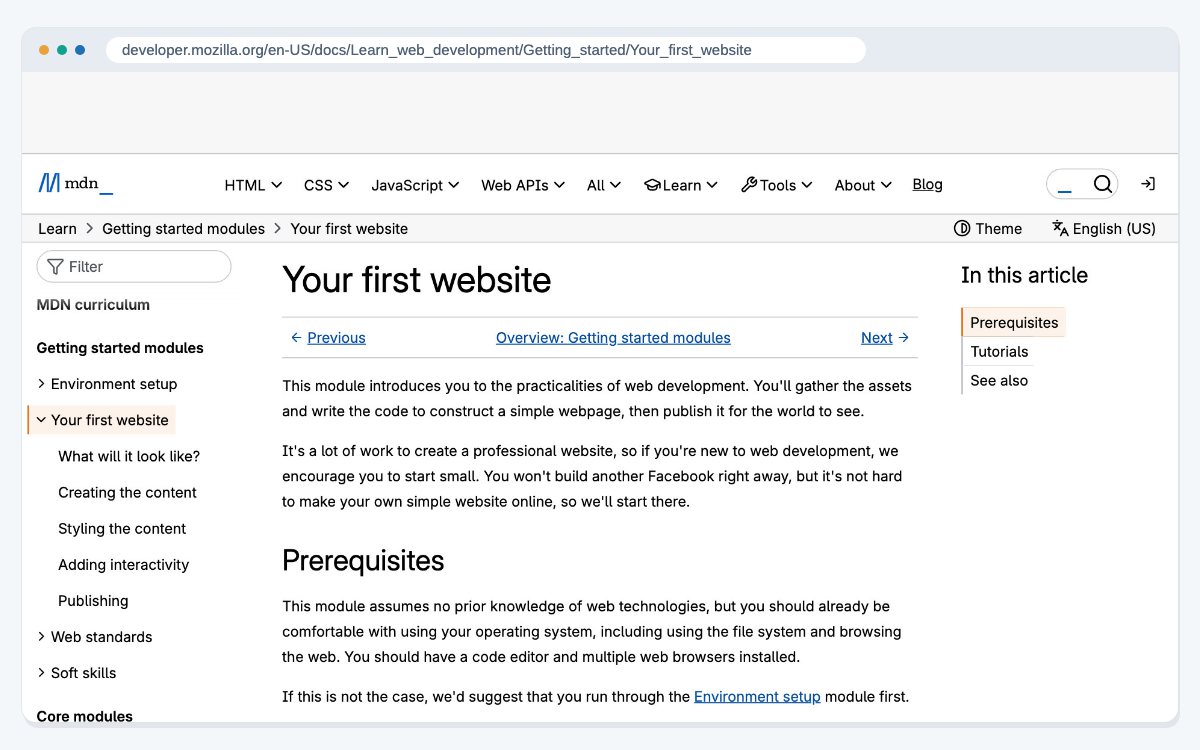
MDN's guide to building your first website suggests deciding what information you will show, and which fonts and colours you will use, before you write any code. If the site has only one job, such as collecting sign-ups for a launch, a single landing page may be all you need at first.
Step 2: Map your pages
Next, list every page the site needs and how they link together. This list is called a sitemap. A simple first site could have a home page, a services or products page, an about page and a contact page.
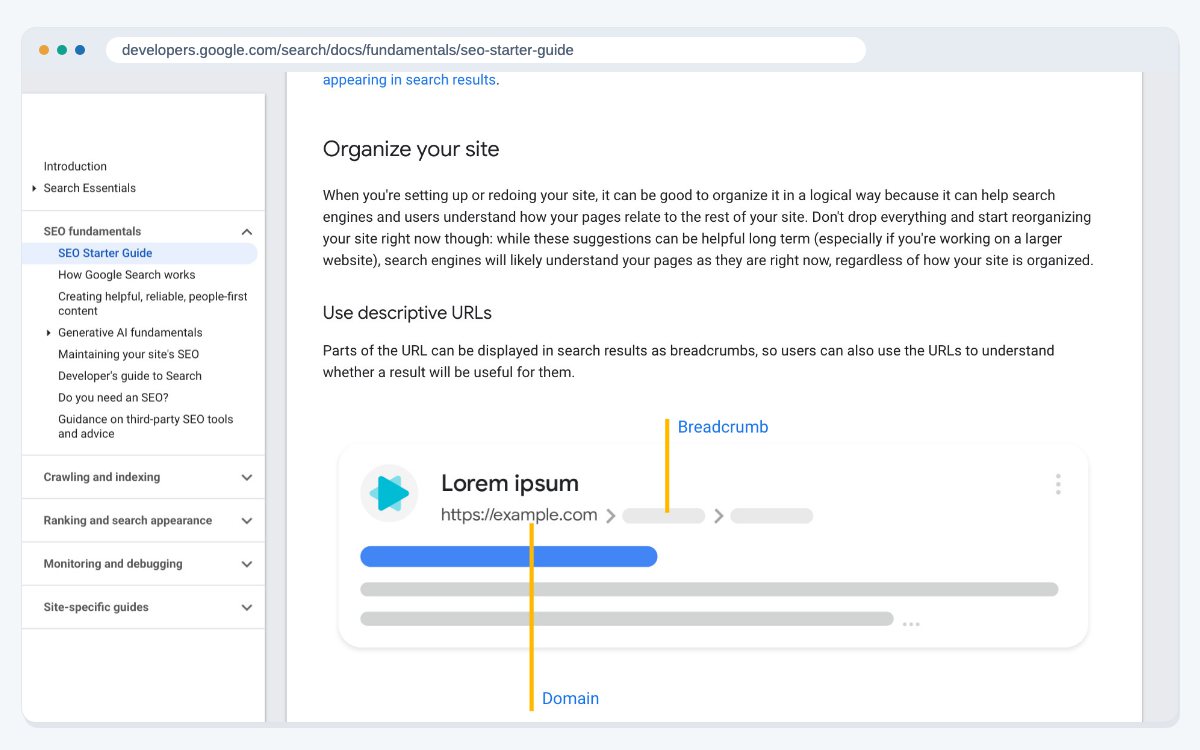
Keep the structure simple. Google's SEO Starter Guide suggests grouping similar topics together and using words in your URLs that are useful to people, such as /services/ or /contact/, rather than random numbers. It also says search engines will likely understand your pages as they are, so you don't need a perfect structure on day one.
What to copy: give each piece of content one page and one URL. Google's guide says duplicate content is not against its spam policies, but it can be a bad experience for users.
Step 3: Sketch the layout
Now sketch each page on paper or in a design tool. These rough drawings are often called wireframes. They show where things go, not how they look. This is the start of UI and UX design: deciding what a visitor sees first and what they do next.
For each page, decide:
- Header: your logo and the main menu.
- Main message: one clear headline that says what you do.
- Sections: the blocks of content, in the order a visitor needs them.
- Action: the button or form that matches your goal.
- Footer: contact details and links to key pages.
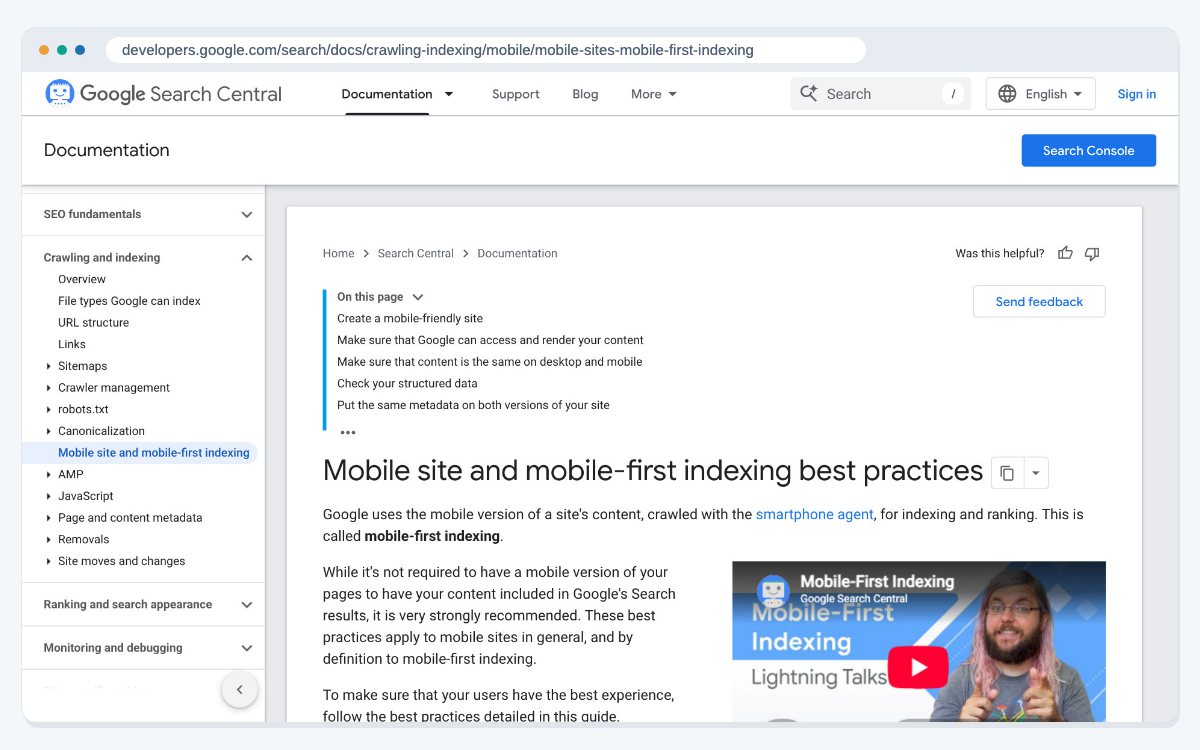
Sketch the phone version too. Google says it uses the mobile version of a site's content, crawled with its smartphone crawler, for indexing and ranking. So the small screen is not an afterthought.
Step 4: Set your visual style
Once the layout works, choose the look. Write it down in one place so every page matches:
- Colours: one main colour, one accent colour for buttons and a few neutral shades for text and backgrounds.
- Fonts: one for headings and one for body text is enough.
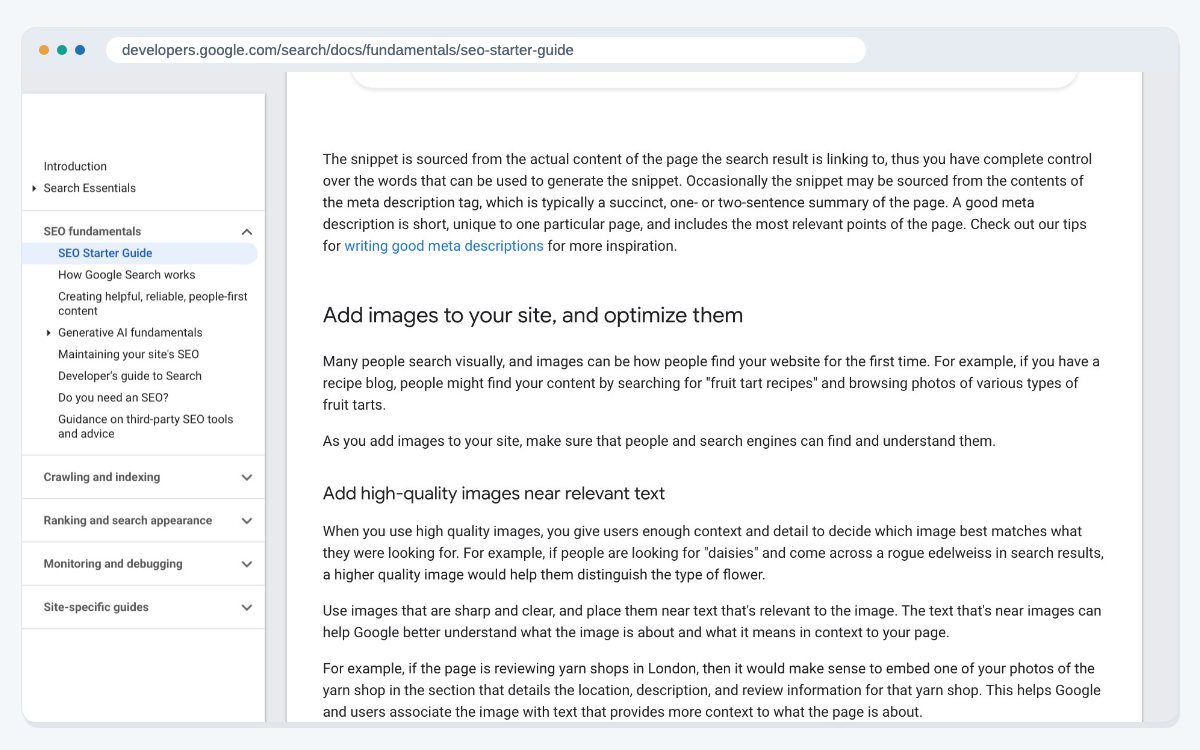
- Images: Google's guide says to use sharp, clear images and place them near the text they relate to.
- Spacing: use the same gaps between sections on every page.
Make sure your text is easy to read against its background, and check that buttons look like buttons. If your business already has a brand guide, use its colours and fonts. If it doesn't, these three real brand guides show what is worth writing down.
Step 5: Build it with HTML, CSS and JavaScript
Building from scratch means writing the code yourself. MDN explains the three main languages:
- HTML: the structure and content of a page, such as paragraphs, lists, images and tables.
- CSS: the styling, such as text colour, layout and backgrounds.
- JavaScript: the interactivity, such as responses to button presses, form entry and animation.
Use responsive design so one page adapts to every screen. Google recommends responsive design because it is the easiest design pattern to implement and maintain. It serves the same HTML on the same URL to all devices and changes the layout by screen size.
Build accessibility in from the start. The W3C's Web Accessibility Initiative gives simple examples: add alt text to images so screen readers can describe them, and make sure everything works with a keyboard, not just a mouse. This affects a lot of people. The World Health Organization estimates that 1.3 billion people, about 16% of the world's population, experience significant disability (fact sheet dated 7 March 2023). A full review against the WCAG standard is part of a website accessibility check.
Step 6: Test, publish and improve
Before launch, check every page on a phone and a computer, in more than one browser. Click every link and send a test message through every form.
Test for accessibility too, because problems are common. The WebAIM Million ran automated checks on the home pages of the top one million websites in February 2026. It found detected WCAG 2 failures on 95.9% of them, with an average of 56.1 errors per page. Low contrast text was the most common problem, on 83.9% of home pages.
Then do the basic search setup from Google's SEO Starter Guide:
- Give every page a unique, clear title.
- Write a short, unique meta description for each page.
- Use headings to break long text into sections.
- Add alt text that explains how each image relates to the page.
Search engines also need to crawl and index the site without errors, which is the job of technical SEO. Once the files are ready, you publish them to a web host so people can visit.

Keep it working after launch
A website is never quite finished. Keep your content up to date, test your forms regularly and fix broken links as you find them. Updates to plugins, themes or code libraries can break things, so check the site after each one. This routine work is what website maintenance covers.
Designing a site from scratch takes time, and it is fine to get help. If you would rather have a team plan, design and build it with you, our web design services cover every step in this guide.
Frequently asked questions
You can plan, map and sketch a site without code. To build it from scratch, you need HTML and CSS, and often JavaScript. Website builders are the no-code option, but then you start from their tools, not from scratch.
Decide what the site is for and who will use it. Then list the pages you need. Every design choice after that follows from those answers.
Not usually. Google recommends responsive design, where one page on one URL adapts to every screen size. Sketch the phone layout early so it works well.
A simple first site could have a home page, a services or products page, an about page and a contact page. Add more only when you have content for them.
A wireframe is a rough sketch of a page. It shows where the header, headline, sections, buttons and footer go, without colours or final images, so you can fix the layout before you design the look.
In planning, a sitemap is the list of pages on your site and how they link together. It is different from an XML sitemap, which is a file that lists your pages for search engines.
HTML for the structure and content, CSS for the look and layout, and JavaScript for anything interactive. A simple site can work with HTML and CSS alone.
Add alt text to images, make every feature work with a keyboard, label every form field and keep text easy to read against its background. Low contrast text and missing alt text were the two most common errors in the 2026 WebAIM Million report.
Keep it small. One font for headings and one for body text is enough, with one main colour, one accent colour for buttons and a few neutral shades.
Check every page on a phone and a computer, in more than one browser. Click every link, test every form, and make sure each page has a unique title, a meta description and alt text on its images.
Sources
- MDN Web Docs: Your first website
- Google Search Central: SEO Starter Guide (last updated 10 December 2025)
- Google Search Central: Mobile site and mobile-first indexing best practices (last updated 10 December 2025)
- W3C WAI: Introduction to Web Accessibility
- World Health Organization: Disability fact sheet (7 March 2023)
- WebAIM: The WebAIM Million, 2026 report (data from February 2026)
Last updated: